The last year of paid security updates for Windows Server 2012 and 2012 R2 ended on 13 October 2026. Windows Server 2016 reaches the end of extended support three months later, on 12 January 2027. For a lot of organisations that means two waves of physical servers leaving the rack in quick succession, and a retired server keeps data in more places than its drive bays.
The software deadlines get the attention. This piece is about the hardware: where data sits on a server you are switching off, what the manufacturers' own erase tools cover, and what a decommissioning record should show when someone asks about it later.
Two deadlines, three months apart
Windows Server 2012 and 2012 R2 left extended support on 10 October 2023. Microsoft then sold Extended Security Updates for up to three years, and the Microsoft ESU FAQ lists 13 October 2026 as the end of year three. There is no year four to buy.
Microsoft is blunt about what ESUs were for. It calls them "a last resort paid option" that is "not intended as a long-term solution, but rather as a temporary bridge."
Next in line is Windows Server 2016. Its lifecycle page puts the end of extended support in January 2027, so the January Patch Tuesday, 12 January, is the last regular update. Many of those servers also run SQL Server 2016, which already left extended support in July 2026. Its first paid ESU year runs to 13 July 2027.
Microsoft's guidance on the options comes down to three routes. You can move the workload to Azure, buy ESUs as a bridge, or upgrade on-premises, either by building new servers or by upgrading in place. On the last point, Microsoft notes: "Starting with Windows Server 2025, nonclustered in-place upgrades support up to four versions at a time."
Whichever route you take, our experience is that a server bought for Windows Server 2016 is often as old as its operating system, and it leaves with it. That is where the data question starts.
Where a retired server keeps data
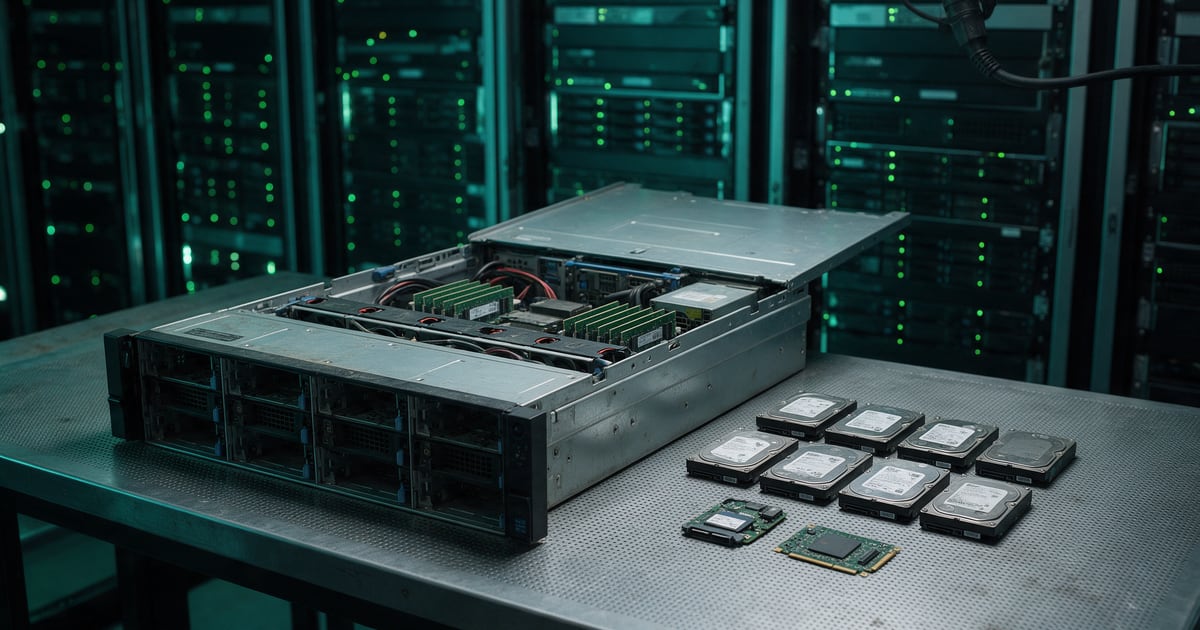
The data drives. RAID spreads data across drives, but it does not make any one drive safe. Every member of a striped array holds readable fragments, and every member of a mirror holds a full copy. Each drive needs sanitising and recording by its own serial number, not as "the array".
The boot device. Many servers boot from something small and internal: an SD card module, a USB key or an M.2 boot card such as Dell's BOSS. These hold the operating system or hypervisor, its configuration and its logs. They are also the easiest part of a server to miss, because they are not in a drive bay.
The management controller and firmware stores. Dell describes "server non-volatile stores such as caches and logs" as a separate thing to erase. HPE's secure erase resets iLO, deletes the licences stored there, resets BIOS settings and deletes Active Health System and warranty data. None of that is customer data in the usual sense, but it describes your network and your estate, and it should not leave the building intact.
External and shared storage. HPE's documentation warns administrators to "Disconnect any FCoE, iSCSI, external SAS, and Fibre Channel storage before using secure erase." It is a useful reminder that a server's data often lives on a SAN or NAS with its own retirement plan. Switching off the server does nothing to the LUNs it used.
The copies. Backups, replicas and disaster recovery copies outlive the primary server. Retiring the server without retiring its copies just moves the problem.
The built-in erase tools, and their limits
Dell and HPE both ship an erase function, and both are worth using. Neither removes the need for a record.
Dell System Erase. Dell's technical brief describes it as "a feature of PowerEdge servers with iDRAC9". It finds hard drives, self-encrypting drives, Instant Secure Erase drives, NVMe drives and NVDIMMs. It uses cryptographic erase where the drive supports it and overwrite for ordinary SATA hard drives. Dell adds that "The drives present in BOSS controller can also be erased."
The catch is the generation. iDRAC9 arrived with 14th generation PowerEdge servers, and 13th generation machines run iDRAC8. Many servers bought new for Windows Server 2016 may predate System Erase, so check the generation before you plan around it.
HPE One-button Secure Erase. HPE says the feature implements the NIST SP 800-88 Revision 1 recommendations for purging user data. It also warns that it "should be used with extreme caution, and only when a system is being decommissioned," and that it can take up to a day. The important word in HPE's description is "supported". It erases supported non-volatile storage, and the secure erase report is where you find out what that meant on your server.
Controller encryption added later. If drives were encrypted at the RAID controller, destroying the key looks like a quick erase. NIST SP 800-88 Revision 2 only accepts cryptographic erase where "no sensitive data has previously been stored on the ISM in plaintext form (i.e., not encrypted)". On an array where encryption was switched on after the data arrived, that condition may not hold. It is the same trap we described for BitLocker on older PCs.
A decommissioning record that will stand up
When an auditor or a customer asks what happened to a server, the answer should be on paper, per machine:
- The server's asset tag and serial number.
- The serial number of every drive, including boot devices.
- The method used on each drive (cryptographic erase, overwrite or physical destruction) and whether it was verified.
- Confirmation that the management controller and BIOS were reset.
- What happened to backups, replicas and any shared storage the server used.
- The waste transfer note for the hardware itself.
Drives that fail verification should go to physical destruction and appear on the record that way. Our ITAD documentation checklist sets out the full document set, and our piece on what NIST 800-88 Rev. 2 actually says covers the choice of method.
The honest summary
The 2012 R2 bridge has ended and the 2016 deadline is under three months away. Plan the software route first, because it decides which machines leave. Then treat each departing server as more than a set of drives. Find the boot device, reset the controller, account for the copies, and keep a per-drive record. The manufacturers' erase tools help, as long as you check which ones your servers actually have and read the report afterwards.
Nanosoft Team
Writer at Nanosoft - covering ITAD, data security, and sustainable technology lifecycle management.
Found this useful? Share it.